Official Yealico Blog

Yealico is an automation tool, which will enable you to fetch data to create your personal library.

How to use the enhanced login page? — 2019-03-22

How to use the enhanced login page?

Starting with version 3.1.1, we have provided an enhanced version of the login page.

Why are you logged in?

Because some websites need to log in to view the content properly.

Why use an enhanced login page?

Because the host of the login page of some site rules is not the same as the host of the site, this will result in invalid login information obtained after login. Therefore, we need to get the correct login information by jumping to the correct page through the custom URL after the login is completed.

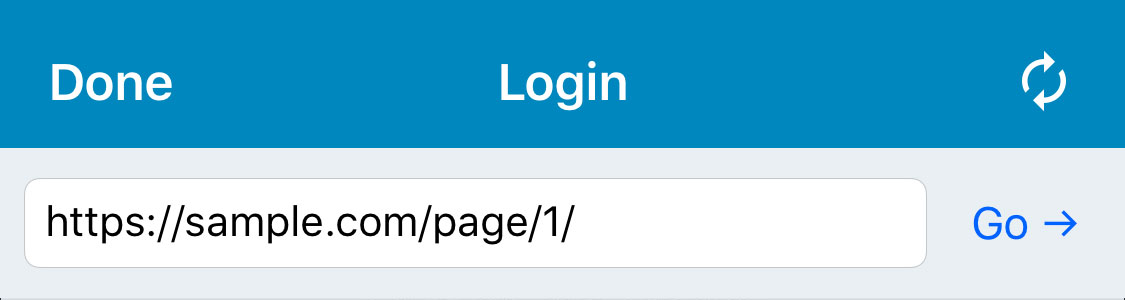
When it is detected that the Host of IndexUrl is different from the Host of LoginUrl, the login page will provide a toolbar with a custom URL. The default is the first page of IndexUrl. When you have finished logging in, if you need to jump to a custom URL, click the “Go →” button.
How to create a site rule QR code? — 2019-02-21

How to create a site rule QR code?

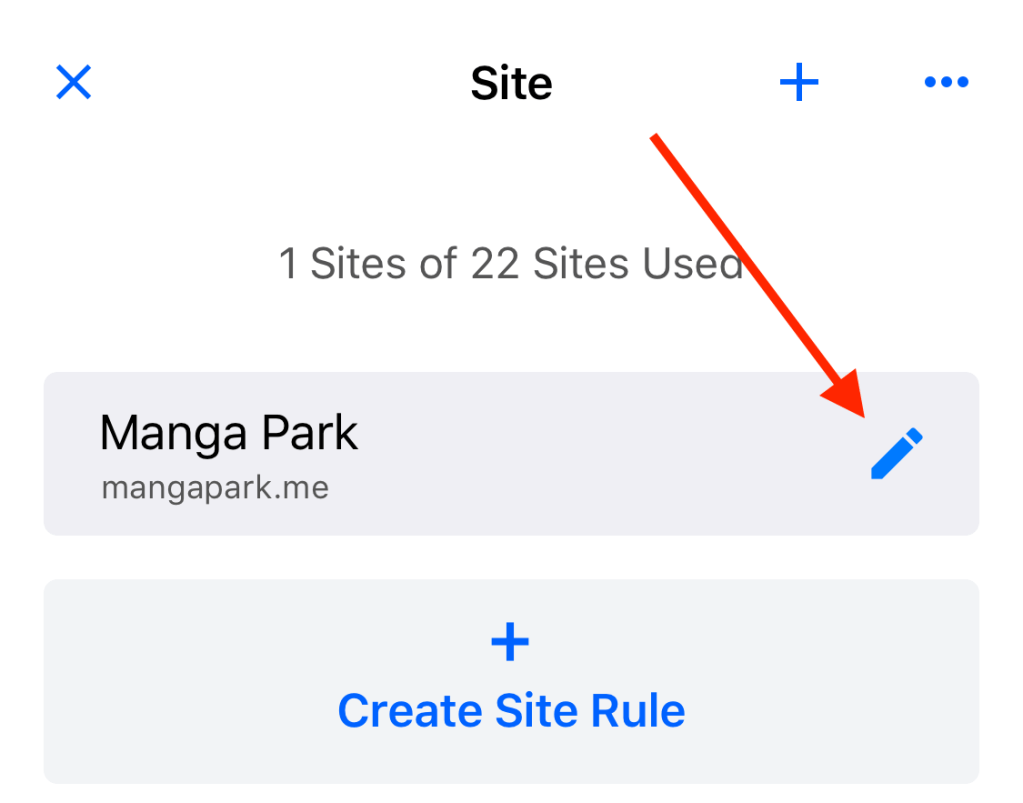
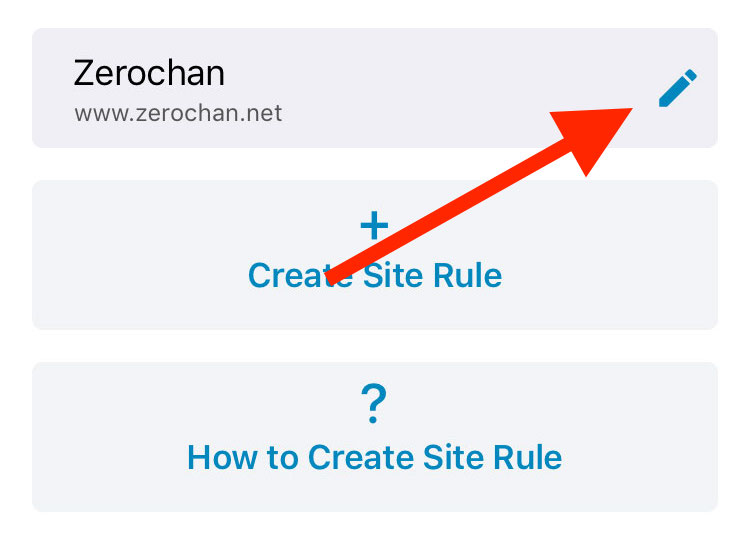
Select the site rule you want to share and click the ‘Edit‘ button to go to the editor interface.

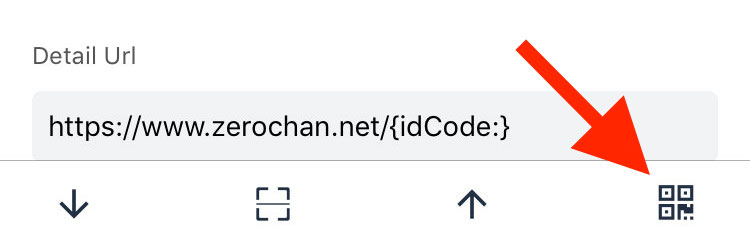
Click the ‘Generate QR Code‘ button at the far right of the toolbar below the editor interface.

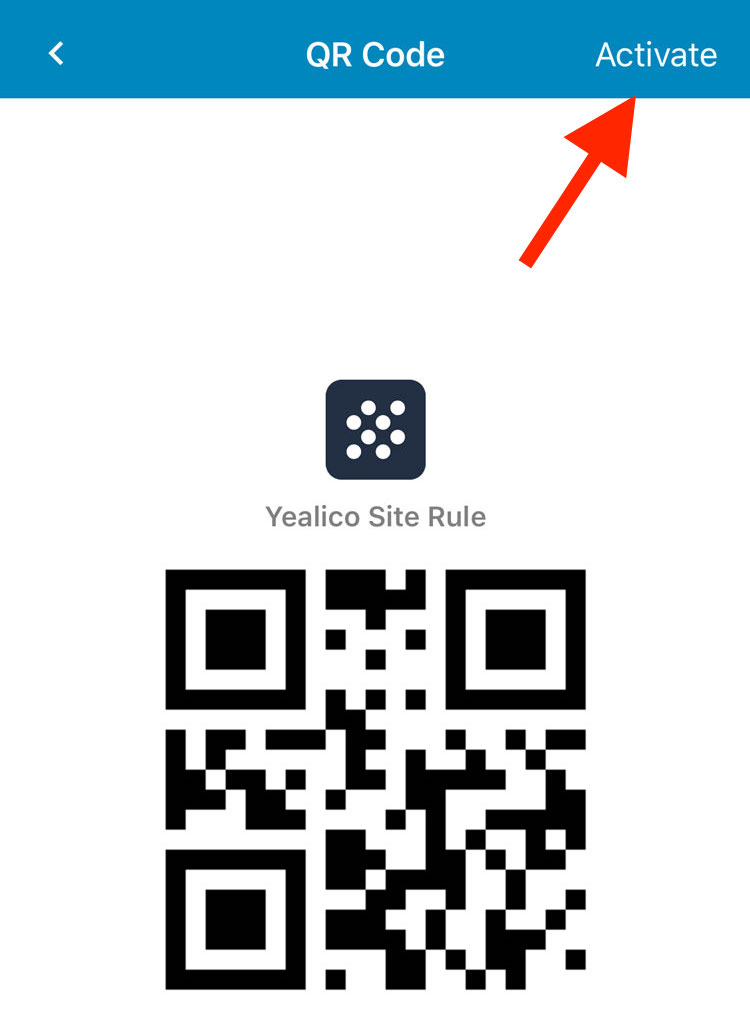
After entering the QR code interface, the QR code does not take effect. You need to click the ‘Activate‘ button in the upper right corner to make it work.

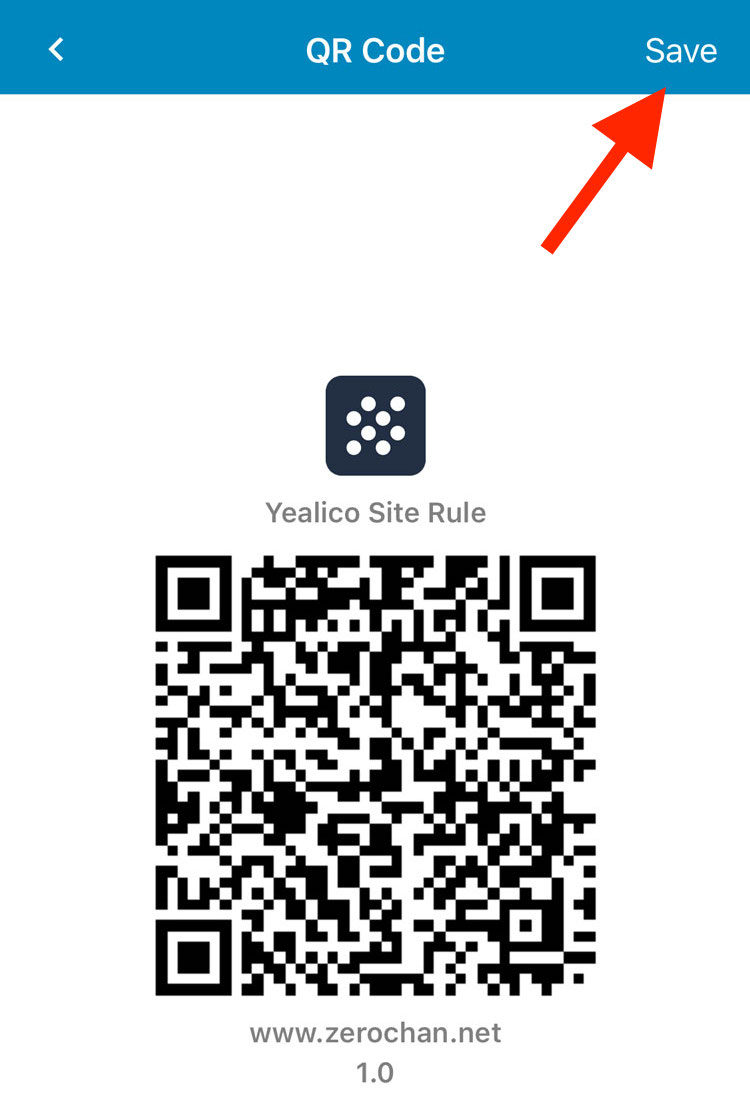
After the QR code is in effect, you can save the generated site rule QR code by clicking the ‘Save‘ button in the upper right corner.

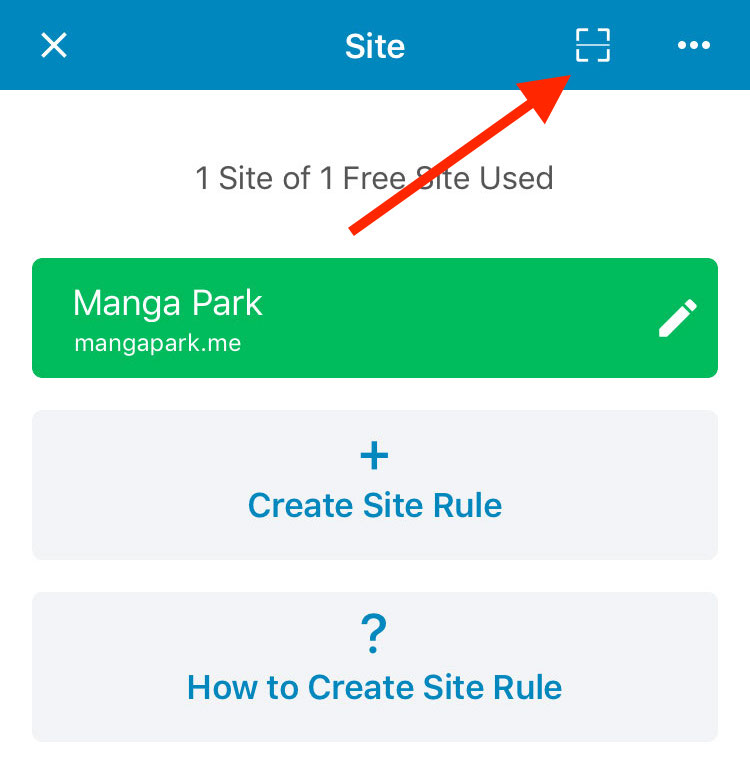
Other users can import the specified site rules by using Yealico to scan the QR code that is already in effect.

For information on how to scan the QR code of the site rules shared by others, please refer to the article “How to scan Site Rule QR Code shared by other users?“.

How to scan Site Rule QR Code shared by other users? — 2019-02-08
How to export and import site rules? — 2018-11-28

How to export and import site rules?

Sometimes, we want to share our own site rules for others or import site rules that others share. So, we need to learn how to export and import site rules through Yealico.

How to export site rule?

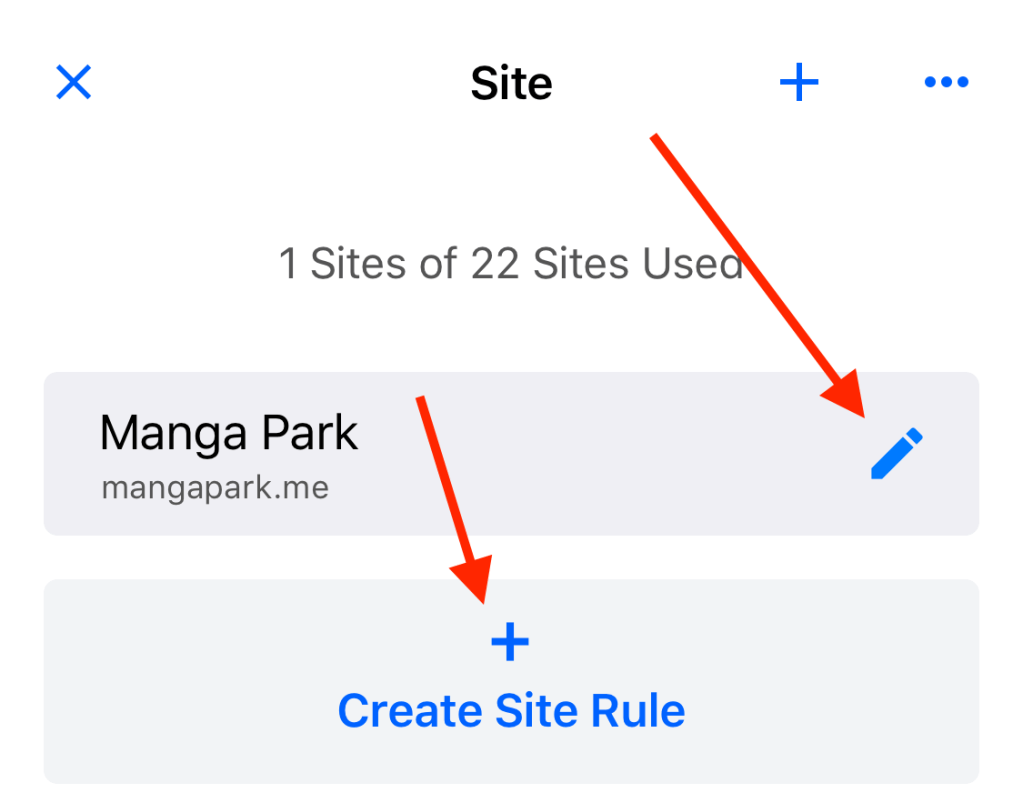
1. Select a site and click the edit button to enter the edit page.

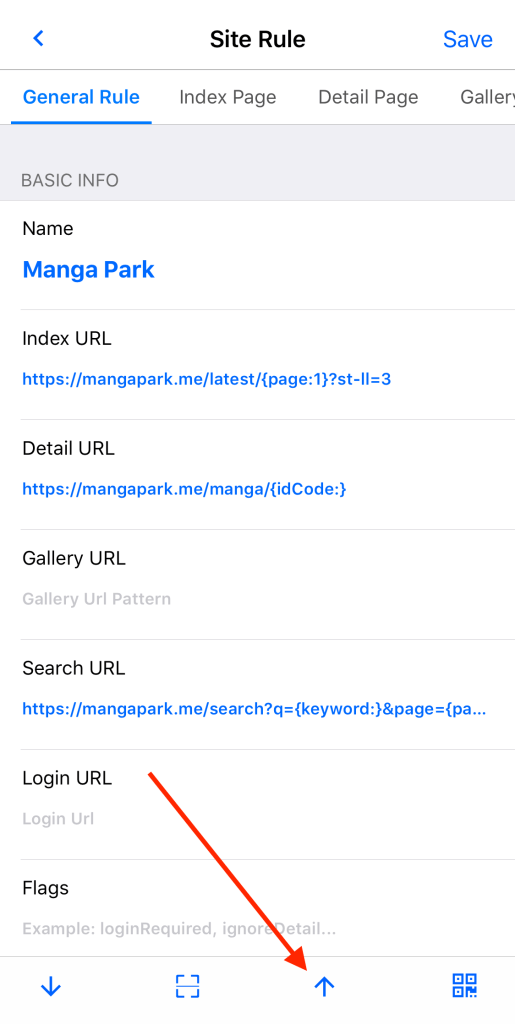
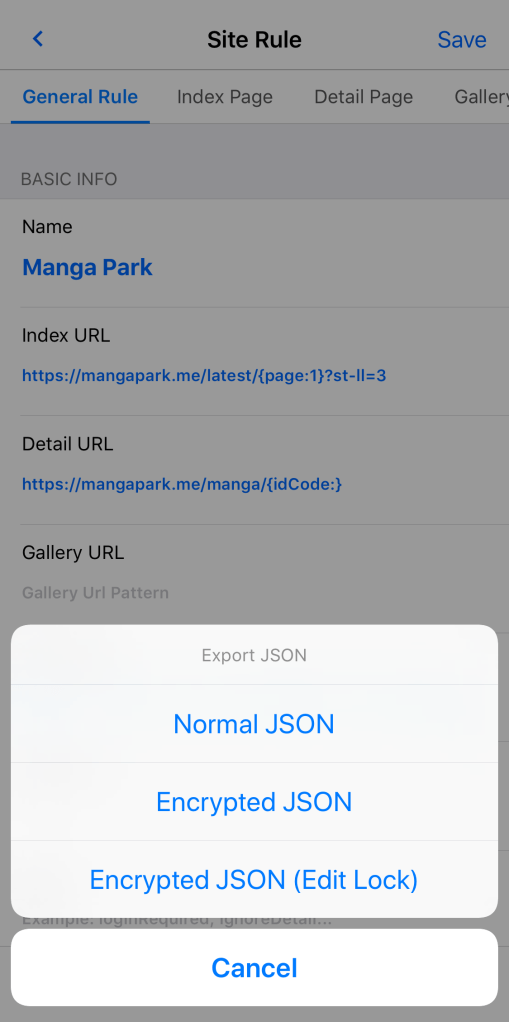
2. Click the “up arrow” button on the bottom toolbar to pop up the three modes of export and click on “Normal JSON”.

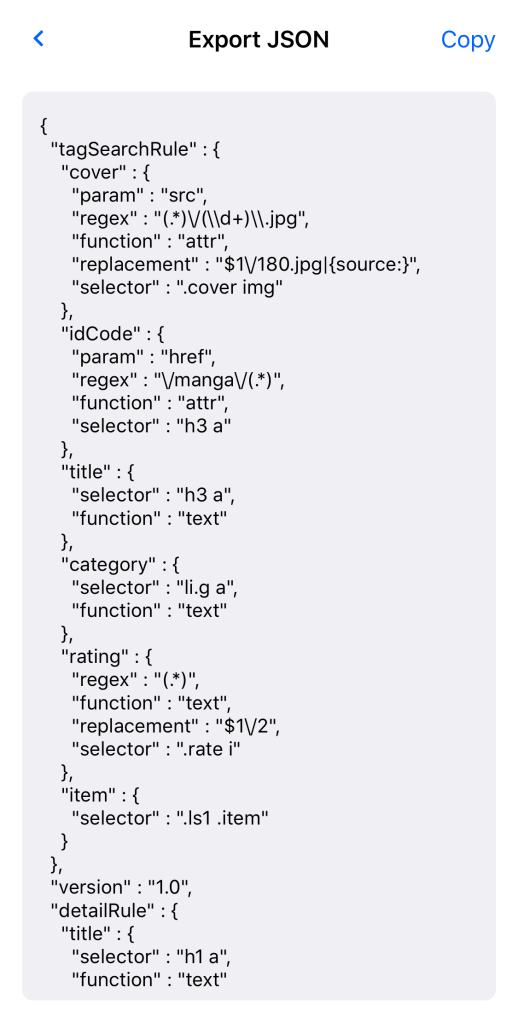
3. Yealico will output the current site rule as JSON text.

How to import site rule?

1. Select a site (overwrite) or click button to create a new site to enter the edit page.

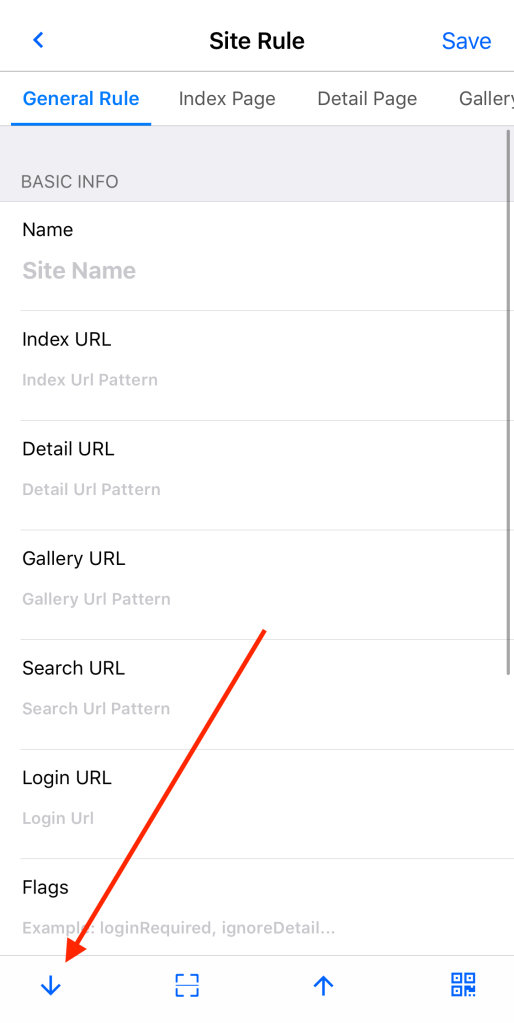
2. Click the “down arrow” button on the bottom toolbar to enter the import page.

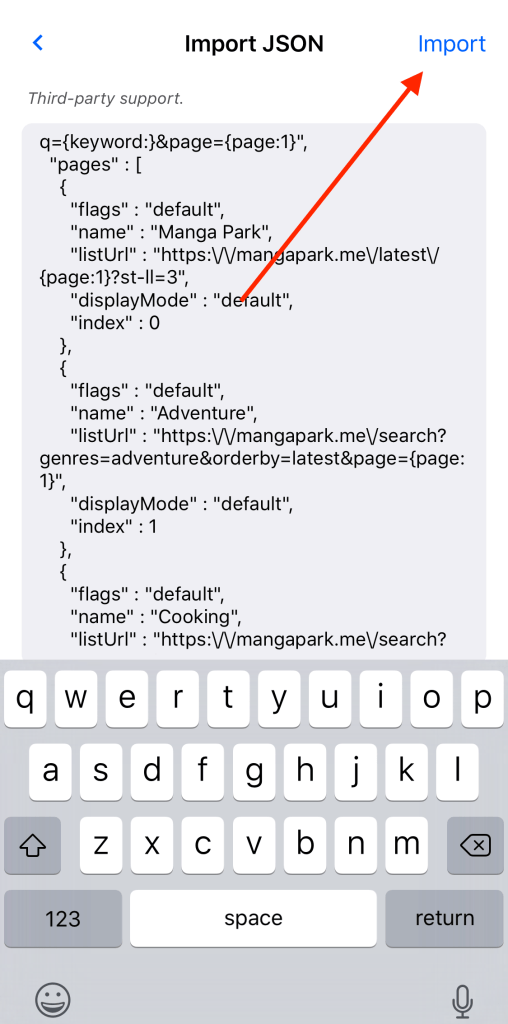
3. Paste the JSON text of the site rule into the edit box and click the “Import” button in the upper right corner, Yealico will import the site rule.

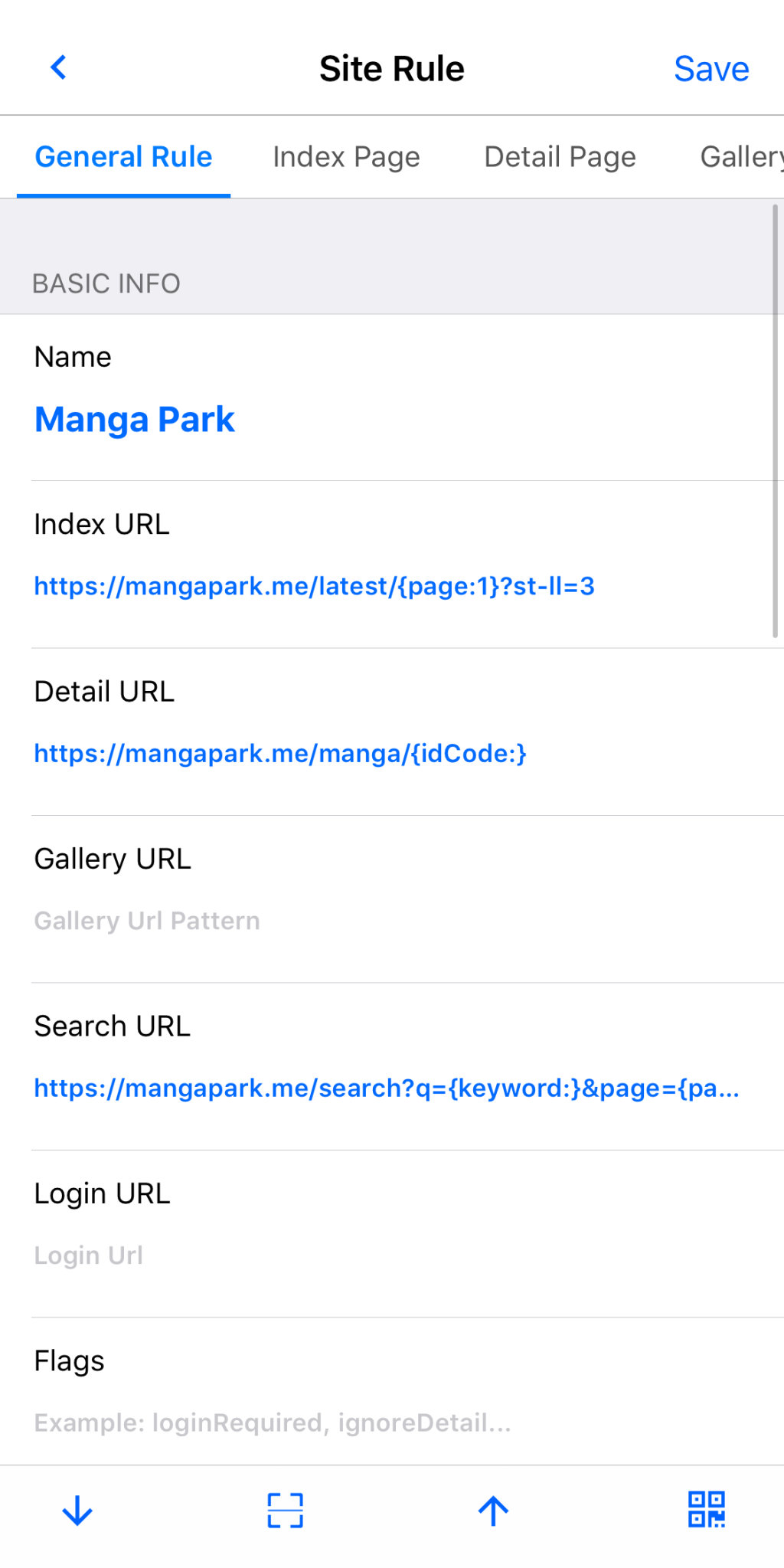
You can find an example of site rule from the article, Sample Site Rule for Manga Park.

How to write site rules? — 2018-11-26

How to write site rules?

How to use Yealico?

The answer is:

You need to write your own site rules or import site rules shared by others.

You can write site rules for your favorite websites through the Site Rules Editor provided by Yealico.

There are two prerequisites for writing a site rule on its own:

  1. Read and understand the specifications for writing Yealico site rules.
  2. Familiar with HTML and CSS, more advanced rules writing also need to be familiar with Regular Expressions.

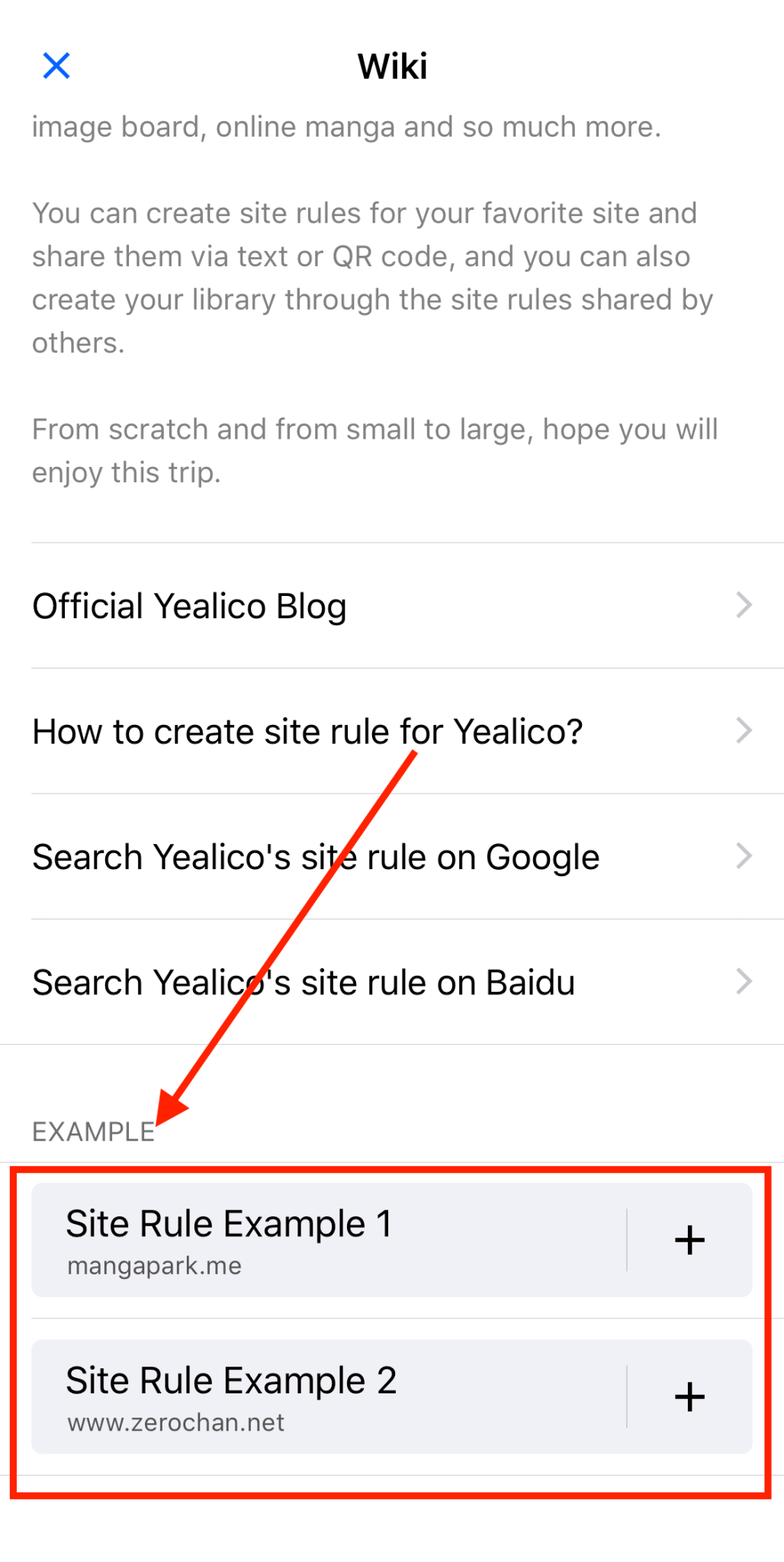
Yealico also provides some examples of site rules for users to learn. To find examples of these site rules, please refer to the following steps:

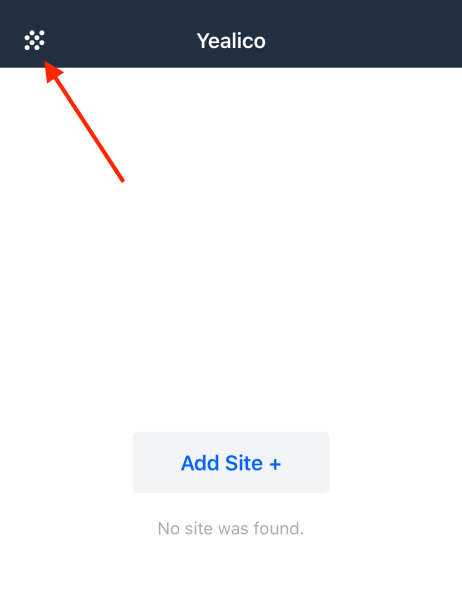
1. Click the button in the upper left corner of Yealico.


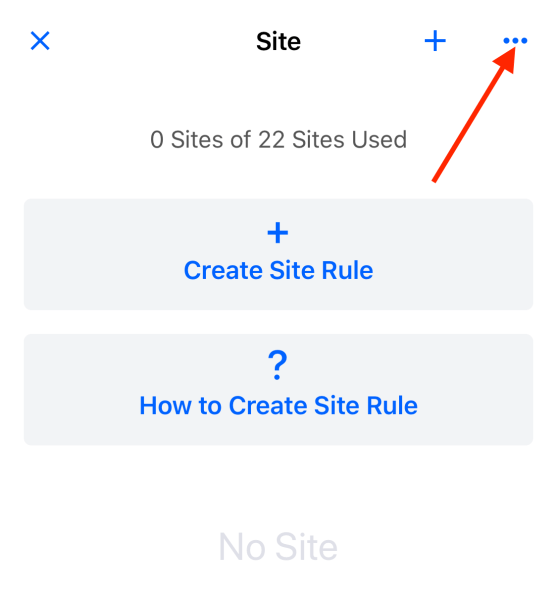
2. Click the “···” button in the upper right corner.


3. Drag the page to the bottom.


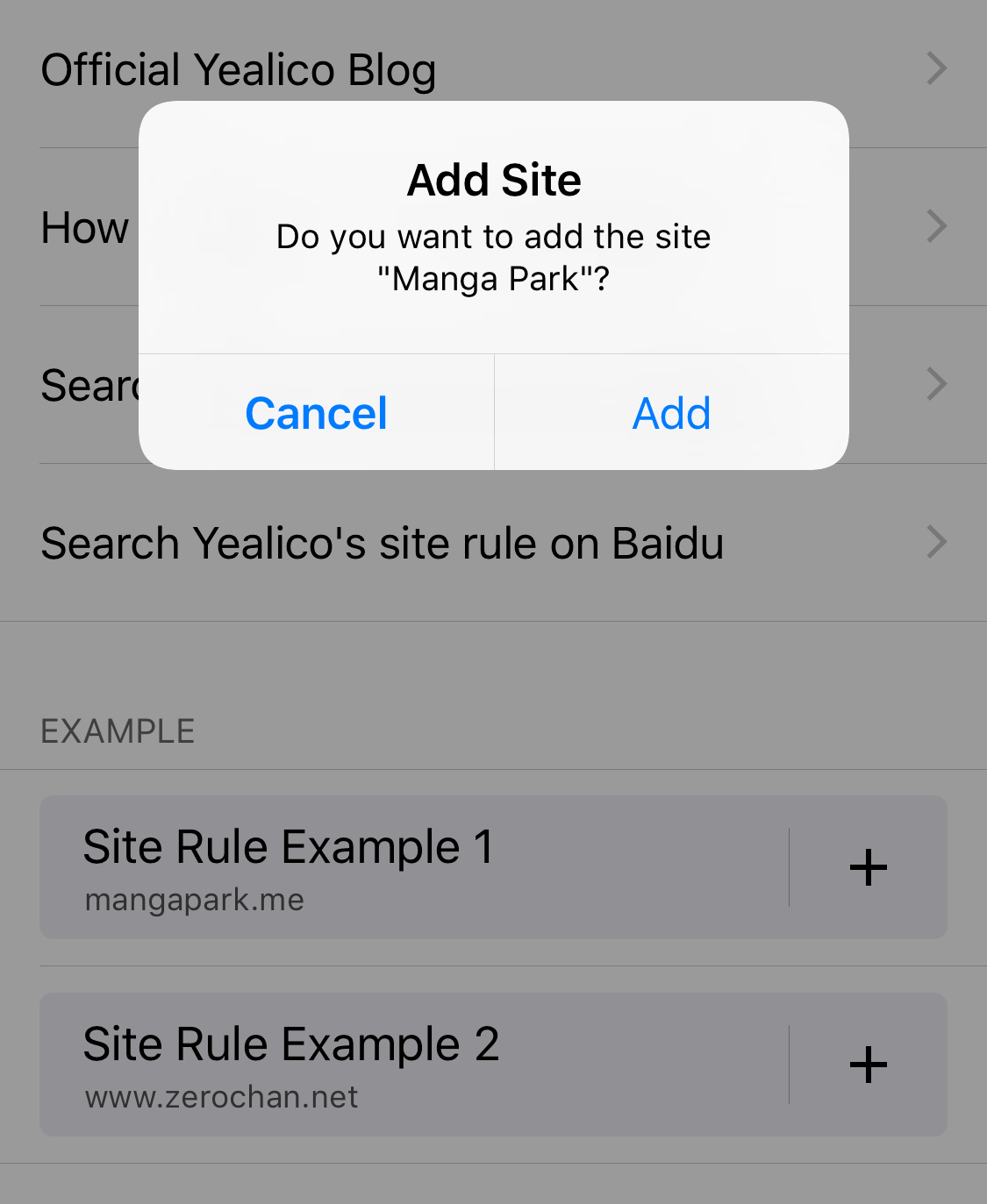
4. Click on one of the sample sites to automatically import the selected sample site.


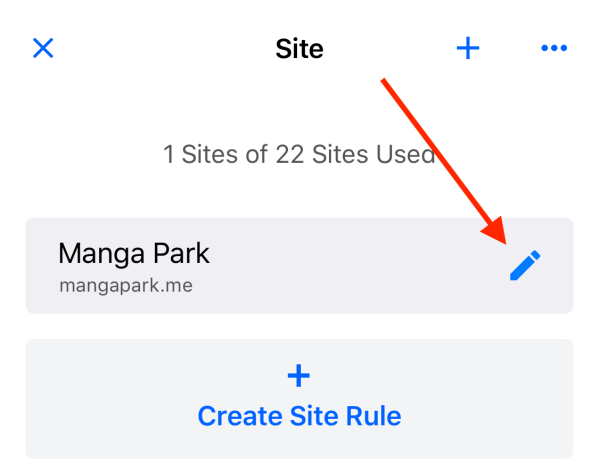
5. Click the edit button of the sample site you just imported to view and re-edit this site rule.


You can find an example of a site rule from the article, Sample Site Rule for Manga Park.